


Microsoft 365 Isn’t Your Backup: The Data Protection Reality Businesses Need to Know
On a Monday morning, the finance manager opens Outlook and sees that the vendor invoice folder is missing. Then the IT team checks the recycle bin, but it's empty. The retention period has already passed, and the audit deadline is only two weeks away.
This happens in businesses ranging from small to large. It generally starts with one wrong assumption: Microsoft 365 backs up everything automatically.
Microsoft 365 is a great platform for running your business, but it is not a real backup plan. Once you know the difference, you can start protecting your data. In this blog, we will learn about what Microsoft 365 actually protects, how to take a real Office 365 backup, and more.
Is Microsoft 365 Really a Backup?
Most users often get confused between cloud storage and backup, but they are not the same. Microsoft 365 hosts your emails, files, and apps with built-in data protection. These features support everyday operations, not long-term backup.
Here are some key terms:
-
Cloud Service: Microsoft runs the apps you use daily, like Exchange Online, SharePoint, and OneDrive.
-
Retention: The rules that decide how long deleted data will be available before being permanently deleted.
-
Recovery: You can restore recently deleted items with built-in tools, but only within a limited time.
-
Backup: A separate copy of your data stored outside Microsoft 365 and under your control.
Why Do Businesses Need Office 365 Backup?
The risks are clear when you know that retention is not a backup. Here are some common reasons to backup Office 365:
-
Accidental Deletion: An employee deletes a folder by mistake without knowing it contains important files. Files cannot be restored without a backup.
-
Permanent Deletion: If the retention period expires, then you cannot recover data with Microsoft's native tools. Only a backup can restore it.
-
Breached Accounts: A phishing attack gives an outsider access to the mailboxes and files. After that, attackers can steal or delete important data.
-
Ransomware: Attackers encrypt files, and the encrypted files are directly synced to your cloud storage. It can spread damage throughout the environment.
-
Data Corruption: Sync errors or software bugs can damage files in the background. This corruption is unnoticed most of the time.
-
Employee Departure: Offboarding processes often wipe mailbox data before anyone saves it.
-
Compliance Requirements: Some organizations need to keep their data longer than Microsoft’s default retention policies. Backup helps you to meet those compliance requirements.
-
Server Disruptions: If Microsoft’s server is down for any reason, then backup provides organizational continuity.
Manual Method for Taking Office 365 Backup
Steps to export a mailbox to a PST file are as follows:
-
Firstly, open Microsoft Outlook and go to the File tab on the ribbon.
-
Then select Open & Export, then Import/Export.
-
Select Export to a File, then click Next.
-
Choose Outlook Data File (.pst).
-
Select the mailbox or folder you want to save.
-
Enable Include Subfolders if required.
-
Browse to a safe location to save the file and set the file name.
-
Finally, click Finish to start the process.
-
Lastly, check whether the PST file was created successfully.
This method works best for a single mailbox. However, repeating the same process for multiple users is hard.
Limitations of Manual Method
Some of the common limitations of Office 365 backup using the manual method are:
-
For multiple accounts, this method is time-consuming.
-
It is difficult to manage multiple users at the same time.
-
Built-in automation is not available for the backup process.
-
It is hard to monitor whether the backup process is completed successfully.
-
Manual steps increase the possibility of human error.
Backup Office 365 Using a Professional Tool
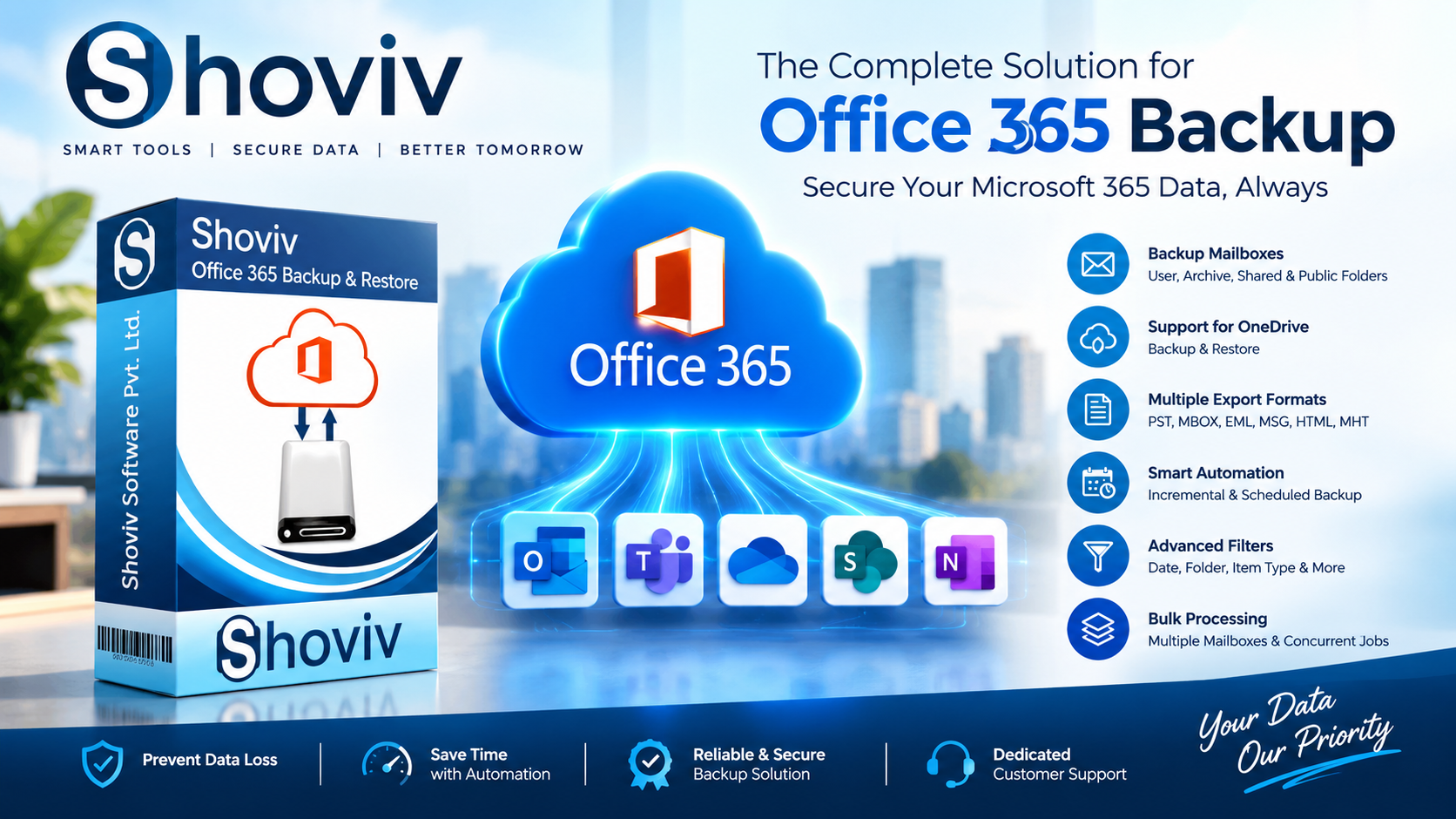
For an organization that needs a secure, fast Microsoft 365 backup, a third-party professional backup tool like Shoviv Office 365 Backup tool is the best choice. It eliminates the limitations of manual backup. Also provides some advanced features, which are:
-
Allows taking backups in multiple file formats, including PST, MBOX, EML, MSG, MHT, and HTML.
-
Efficiently backs up User Mailbox, Archive Mailbox, and Public Folders.
-
Users can create and run multiple backup jobs simultaneously.
-
The software also restores corrupted PST files to Office 365 mailboxes.
-
With the filter option, users can include/exclude folders and dates.
-
It allows you to add mailboxes of any size.
-
Users can automate the backup jobs with a scheduling option.
-
The incremental backup facility prevents duplicate items.
-
The software is Outlook-independent, i.e., it can run without Outlook.
Conclusion
Microsoft 365 helps in running your business, but it does not back up your data. The retention period saves your data only for a limited time. The manual method to take a Microsoft 365 backup works but takes time and is best for individual users. A professional tool like Shoviv Office 365 Backup and Restore Tool takes the backup fast and securely. Moreover, it is the best solution for both individual users and large organizations.
Frequently Asked Questions
What happens when I delete a file by mistake?
With the recycle bin, you can restore files within a short time limit. But once the retention period ends, the file will be permanently deleted. Only a backup can save your data.
How often should I back up my Office 365 data?
It generally depends on how regularly your data changes. Most businesses take backup daily or weekly. Important data needs regular backups. With the Shoviv Microsoft 365 Backup Tool, you can schedule it daily, weekly, or monthly.
Does Microsoft offer any backup services of its own?
Microsoft focuses on data availability, not on long-term backup. It offers only recovery and retention features, which have fixed time limits and rules. For a real backup, you have to go for a separate solution.
What is a retention policy in Microsoft 365?
A retention policy decides how long data will be available after deletion. Once it expires, data will be deleted permanently.

 Bangla