

PDF files are one of the most popular formats for sharing documents, reports, study materials, invoices, contracts, and business records. They keep information organized and preserve document formatting across different devices. However, working with a large PDF can sometimes become inconvenient, especially when you only need a few pages from the entire document.
For example, a student may need only two chapters from a lengthy textbook, an employee might want to share selected pages from a company report, or a business owner may need to send a specific invoice without sharing the entire financial document.
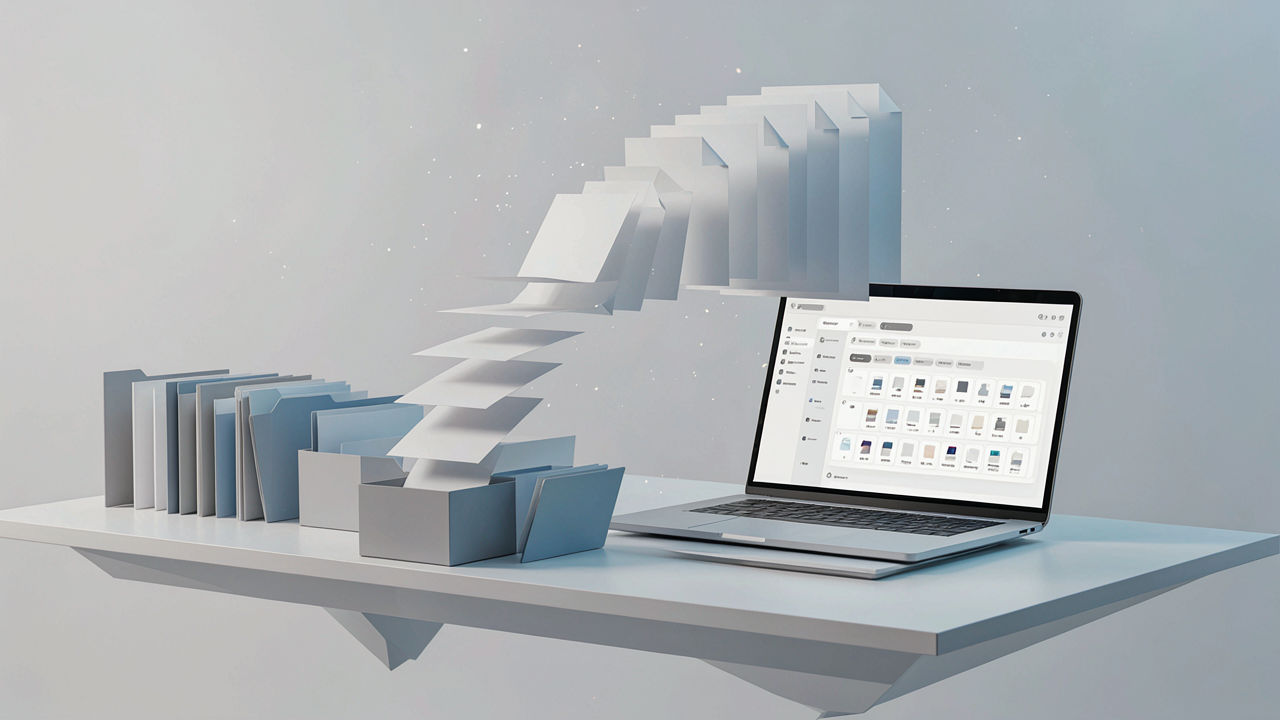
Instead of sending a complete file, you can extract pages from PDF documents and create a smaller file containing only the information you need. This process saves time, makes document sharing easier, and helps keep files organized.
The good news is that you do not need advanced software or technical knowledge to do this. With the right approach, you can easily separate PDF pages using simple desktop applications or an online PDF page extractor.
1. Why Extracting Specific PDF Pages Is Useful
Extracting selected pages is more than just a document-editing task. It is a practical way to manage information efficiently.
Imagine receiving a 100-page business report when you only need pages 15, 20, and 35. Sharing the entire document may confuse the recipient and expose information that is not relevant to them. Extracting only the required pages creates a cleaner and more focused document.
Here are some common situations where page extraction is helpful:
-
For students: Save important chapters, assignments, notes, or selected textbook pages for revision.
-
For professionals: Share specific sections of proposals, presentations, and reports with colleagues.
-
For businesses: Extract invoices, receipts, financial statements, or contract sections.
-
For researchers: Collect useful pages from academic papers and research documents.
-
For personal use: Keep important travel details, application forms, or reference information in separate files.
Separating unnecessary pages also makes documents easier to navigate and distribute.
2. Use an Online PDF Page Extractor
One of the easiest ways to extract selected pages is by using an online tool. These tools are generally designed for users who want quick results without installing additional software.
An online PDF page extractor allows you to select individual pages or page ranges and create a new PDF containing only your chosen content.
The general process is straightforward:
-
Open a reliable online PDF extraction tool.
-
Select the PDF document from your computer or device.
-
Wait for the document to load.
-
Review the available pages.
-
Select the pages you want to keep.
-
Start the extraction process.
-
Download the newly created PDF.
For example, if your document contains 50 pages but you only need pages 5, 8, 12, and 20, you can select those pages and save them as a separate document.
This approach is especially useful when you need to extract pages quickly without learning complicated editing software.
Helpful tip: Before using an online service, check how it handles uploaded files. Documents containing personal, financial, legal, or confidential information should only be processed with tools whose privacy practices you understand.
3. Extract Pages Using Built-In PDF Software
If you regularly work with PDF documents, desktop software can also help you separate PDF pages without relying on an online service.
Many PDF applications include printing, page organization, or extraction features. Depending on the software, you may be able to save selected pages as a new PDF.
One common method is the Print to PDF feature, which is available on many computers.
Follow these steps:
-
Open your PDF document using a PDF reader.
-
Select the Print option.
-
Find the page selection or page range setting.
-
Enter the page numbers you want to keep.
-
Choose Microsoft Print to PDF or another PDF printer.
-
Select Print and choose a location to save the new file.
For example, entering pages 3–7 will create a new PDF containing those five pages.
This method is convenient because it does not always require dedicated PDF editing software. However, printing a document to PDF may change certain interactive elements, links, form fields, or document properties. If preserving these elements is important, use a dedicated page extraction feature instead.
4. How to Select Individual Pages and Page Ranges
Selecting the correct pages is one of the most important parts of the extraction process. Fortunately, most PDF extraction tools support individual page numbers and page ranges.
Understanding how to enter page selections can make the process much faster.
Here are some examples:
|
Page selection |
Pages extracted |
|---|---|
|
2 |
Only page 2 |
|
1-5 |
Pages 1 through 5 |
|
3, 7, 10 |
Pages 3, 7, and 10 |
|
2-6, 9 |
Pages 2, 3, 4, 5, 6, and 9 |
|
1-3, 8-10 |
Pages 1, 2, 3, 8, 9, and 10 |
For example, imagine you have a 30-page training document. You need the introduction, the third chapter, and the conclusion. Instead of manually creating separate documents, you can select the relevant page numbers and extract them together.
Before downloading, always check the selected pages and their order. Some documents include cover pages, blank pages, or introductory sections that affect the numbering.
Also, remember that the page number displayed in a PDF viewer may differ from the printed page number written inside the document. Check the actual PDF page sequence to avoid extracting the wrong content.
5. Important Tips for Extracting PDF Pages Without Problems
Although extracting pages is usually simple, a few precautions can help you achieve better results and avoid common mistakes.
Check page numbering carefully: Always verify the selected page numbers before starting. This is particularly important for lengthy reports, books, and scanned documents.
Preserve the original document: Save the extracted pages as a new PDF instead of overwriting the original file. This gives you the flexibility to access the complete document later.
Maintain page quality: Choose a tool that copies the original PDF pages rather than converting every page into an image. This can help preserve selectable text, links, and visual quality.
Review the final document: Open the extracted PDF after downloading it. Check that all required pages are present and appear in the correct order.
Consider document privacy: If you are handling sensitive information, choose a solution with clear privacy and security practices. Browser-based processing can be useful when files are handled locally, but always verify the tool's actual processing method.
Use clear file names: Give your extracted document a meaningful name, such as Project-Report-Selected-Pages.pdf or Study-Notes-Chapter-2.pdf. This makes future searches easier.
These small steps can make PDF page management more reliable and organized.
6. Make PDF Page Management Easier With EasyConverterTool
Managing large PDF documents does not have to be complicated. Whether you are a student organizing study materials, a professional preparing business reports, or someone managing personal documents, extracting selected pages can make your everyday work more efficient.
With online PDF document tools, you can simplify common tasks without spending time learning complex software. EasyConverterTool provides a convenient starting point for users looking for practical file-conversion and PDF management solutions.
When choosing a tool for page extraction, look for an easy interface, accurate page selection, good output quality, and clear privacy information. These features help ensure that your extracted documents remain useful and properly organized.
Instead of sharing lengthy documents unnecessarily, separate PDF pages and keep only the information that matters. A few simple steps can save time, reduce document clutter, and improve your overall productivity.
Conclusion
Extracting specific pages from a PDF is a simple but valuable way to manage digital documents. Whether you use an online PDF page extractor, desktop software, or a built-in printing feature, the process allows you to create smaller, more focused documents.
By selecting the right pages, checking their order, and preserving the original file, you can make document sharing and organization much easier.
Explore EasyConverterTool for practical online document solutions and make your everyday PDF tasks simpler and more efficient.
